
So, what is Excel VBA and why bother writing code in it?
If you’ve ever spent three hours on a Friday afternoon manually copying data between spreadsheets, you already know the problem that VBA solves- you just don’t realize it yet. VBA stands for Visual Basic for Applications, which is the built-in programming language of Excel. You can use VBA to automate just about anything you do with the software manually. This includes fetching data, crunching numbers, creating reports, sending e-mails- basically anything you normally do with the keyboard and mouse. Once you write out the directions, Excel performs them every time without your interaction.
While programming language sounds daunting, the core concept is quite simple. You’re basically telling Excel what you want to do in a series of steps. If this happens, do this. If not, do that. Do this 100 times. Skip these 5 rows. Once you get it, your approach to tedious processes changes- they become tasks that you can train Excel to perform for you rather than do yourself.
So how do you start off?
Well the first thing is to know about the Developer tab. It is not turned on by default in Excel-this is kind of like a shop locking all its useful tools away in the back room. You just need to go File Options Customize Ribbon and check the Developer box-that is it, it turns on for you. All the useful things such as the Macro recorder and the Visual Basic Editor are in this tab.
If you have never written a line of code before, the easiest way to start is to use the Macro recorder. Just hit the record button then do exactly what it is you want the macro to do, then hit stop. You will have a piece of code now, where all the syntax to perform what you just did has been entered for you. It isn’t always ideal code, and that will be dealt with later, but for a starting point, it’s really effective.
One of the most commonly missed items, which can lead to great confusion, is that recording macros uses absolute references by default-what this means is that if you click on A1, it will always go to A1 and will never go to wherever your cursor happens to be-you need to turn on “Use Relative References” (hit the button before you record your macro). This is really helpful to anyone that isn’t that familiar with programming.
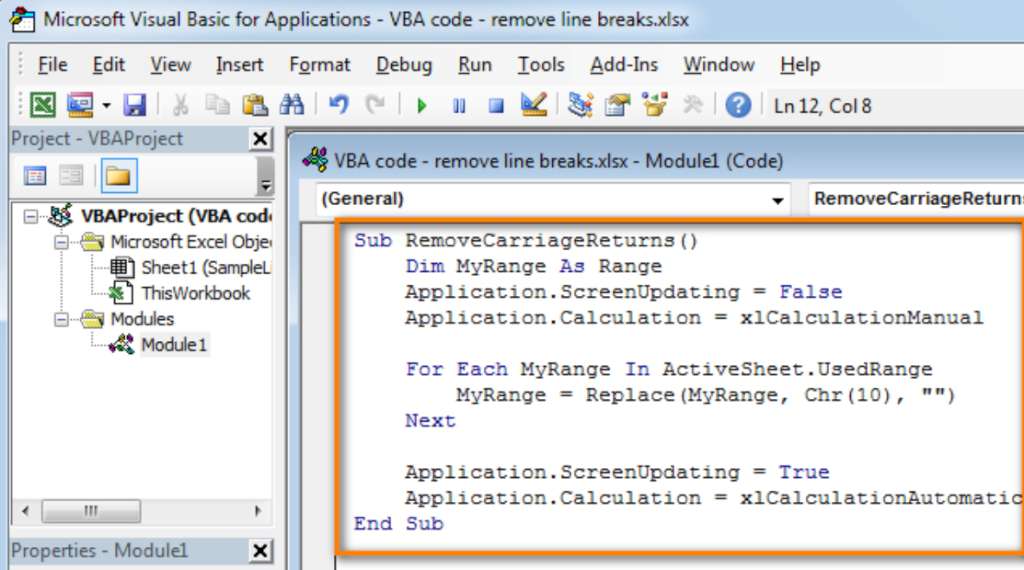
When you have investigated the recorded code to the extent that you feel you have seen enough for now, it is time to open the Visual Basic Editor directly (Alt+F11). You can write and amend your code directly from here; the easiest thing to do when creating a new macro is to press Insert Module, type “Sub MyMacroName()” and press Enter, and VBA will fill in “End Sub” for you; any code typed between the two is the code your macro will execute. Simply press F5, or assign the macro to a button, and run it.
Modules – The Key to Organization
The first time you open the VBE the left pane has the Project Window where the structure of your workbook appears. A Module fits into this structure much like a folder with a name on it. A very common mistake is just sticking all of your code in ThisWorkbook or Sheet1-those objects have specific roles and you are only making trouble for yourself in the future by dumping general macros into them. If you plan on having general macros, or any custom function for that matter, you need to insert a separate module for it.
Once you have inserted the module you need to name it. Macro1 doesn’t mean a thing in 6 months, Sub DeleteBlankRows() tells you exactly what it is doing. Same with the modules themselves: ModReportTools, ModDataCleanup-any kind of naming that makes the project easy to navigate when it gets larger. Add comment lines (those start with a ‘) to any code that isn’t self-explanatory. That code you think of as self-explanatory now will seem like a different language altogether after a weekend away.
It is also good to get a handle on the difference between a public versus a private Sub right away. A Public Sub will appear on the Excel macro list and be callable from a button. A Private Sub can only be called from another Sub or Function within that module-good for helper subs and functions that are called from elsewhere in the module but that you don’t need to show on the list of Excel macros.
The object hierarchy – how to map excel’s structure to code.
Everything in VBA follows a hierarchy: Application (Excel itself) which contains Workbooks which contain Worksheets which contain Ranges. The full reference to A1 on Sheet1 is thus Application.Workbooks(“Book1“).Worksheets(“Sheet1“).Range(“A1“) ( although often this is too verbose and “Range(“A1”)” or “ActiveCell” suffice). If you can get your head around this then the rest of VBA should start to make a lot more sense!
Get to know this early. Documentation is available through placing the cursor over a keyword in the editor and hitting F1 which takes you to a help file for that object/property or method ( with parameters and examples too). The object browser (F2) is useful as well, showing all available objects.
What the macro recorder does wrong and how to do it right.
Here’s the unvarnished truth about recorded macros: they do work but they are clunky. One way the recorder tends to act is that it “selects” whatever it is about to “do something” to. It’s kind of like picking up a pen, then setting it down, picking it up again and then writing. In the code, it looks like this:
vba
Range("A1").Select
Selection.Font.Bold = True
You can shorten that to one line:
vba
Range("A1").Font.Bold = TrueThis is no great shakes in a small worksheet, but in a 10,000-row file it can be the difference between a macro that completes before you’ve had time to even brew your coffee and one that leaves you fetching another. So, strip out the Select/Selection wherever you find it.
The With…End With block is another thing that the macro recorder rarely uses even though it should. If you are changing a number of different properties for one object, grouping them is faster than typing out the entire reference to the object time and time again:
vba
With Range("A1")
    .Font.Bold = True
    .Interior.Color = vbYellow
    .Borders.Weight = xlThick
End With
This is cleaner and also makes for faster execution time and less typing when you need to modify something.
Properly declaring your variables is another important step. When you neglect your Dim statements, VBA “guesses” what the variable type is. This will usually work just fine until it doesn’t! In the case of a variable that will be a counter for rows (something that has to be higher than 32,767), always use Long instead of Integer. One extra line to Dim your variable saves a great deal of future hassle.
The last step is “dead code.” That’s the stray keystrokes the macro recorder picks up even when you didn’t intend it to, such as the infamous Application.CutCopyMode = False. Make sure it is gone. The leaner the macro, the better.
Do I need to download VBA separately?
No – and that’s pretty much the point. Microsoft bundled VBA with Excel starting in the early 90s and it has been a part of Excel in one form or another ever since. No need to download it, no need to install it separately, no need to purchase an extra license for it. It’s built into the Excel you’re already using and you just need to enable the “Developer” tab to be aware it exists.
With that said however, you do need to realize that many companies prevent macros from running, for good reason. Macro-based viruses have and do still exist, and macro viruses are still appearing on many phishing scams, so some companies disallow macros, or at least digitally unsigned macros. If you fall into this situation you need to understand what your company allows before you can run macros.
For individual or small team usage of macros, assuming you know you aren’t working with a malicious Excel file, this shouldn’t be a barrier for you though, it’s there ready to go with no work needed from your end.
So why even bother with VBA in 2025?
People have been pronouncing VBA dead for a good decade now. It’s refusing to die. And it’s because people aren’t using it despite the rhetoric – a lot of people still need it, they’re stuck with Office, or have no desire to change the current spreadsheets they’re using (which probably run with VBA macros in the back end). With over a billion Office users out there Excel can hardly afford to lose it, because VBA is truly embedded with it (no install, no IT department sign off) and so good for quick automation tasks locally and with legacy files that aren’t going to be re-written for at least a little while.
Granted, Python is more powerful if dealing with a large amount of data, or with serious data science. Power Query is excellent for transforming data, Power Automate is fantastic for automating workflows… None of those are directly embedded in Excel though, nor will they manipulate cell objects in the same way as VBA will.
If your day-to-day involves finance, accounting, operations or any sort of position that depends on working in Excel then VBA still adds a bit of value to your skills profile. Most users don’t write their own macros and if you are able to (and it actually works when you tell it to) it will still be seen as an advantage that sets you apart, rather than just a quirky hobby.
The learning curve isn’t a tiny slope to be honest. You will get lost, you will write VBA that is clearly rubbish, and it will probably not work for you the first time (or the second time, or the tenth). Push through. All the things that don’t work tell you what you still need to learn, and a list of what’s not working, and what you need to do to fix it, will probably be more valuable than anything you’ll find in online tutorials.
DOWNLOADS
1. Assigning Values and Formatting Cells Code
Sub EditCell()
    Range("A1").Value = "Hello World"     ' Write text to cell A1
    Range("A1").Font.Bold = True          ' Bold the text
    Range("A1").Interior.Color = RGB(255, 255, 0) ' Set background to yellow
    Range("A1").HorizontalAlignment = xlCenter    ' Center-align text
End Sub
What Does It Do?
Writes Hello World to cell A1 applies bold formatting yellow background and centers the text.
2. Macro Recorder-Generated Example Code
Sub RecordMacro()
    Range("B2").Select
    ActiveCell.FormulaR1C1 = "=RAND()"    ' Generate a random number
    Range("B2").Copy
    Range("C2").PasteSpecial Paste:=xlPasteValues ' Paste as value
End Sub
What Does It Do?
A basic macro-generated code Adds a random number to B2 and pastes the value to C2.
3. InputBox for User Input Code
Sub GetUserInput()
    Dim userInput As String
    userInput = InputBox("Please enter text:", "Data Entry") ' Open InputBox

    If userInput <> "" Then
        Range("A3").Value = userInput    ' Write to A3 if input is not empty
    Else
        MsgBox "No data entered!", vbExclamation ' Warning message
    End If
End Sub
What Does It Do?
Prompts the user for text and writes it to A3. Displays a warning if no input is provided.
4. For Loop to Auto-Fill Rows Code
Sub FillRows()
    Dim i As Integer
    For i = 1 To 10
        Cells(i, 1).Value = i    ' Fill column 1 with numbers 1 to 10
    Next i
End Sub
What Does It Do?
Fills cells A1 to A10 with numbers 1 through 10.
5. Error Handling Code (On Error Resume Next)
Sub ErrorHandling()
    On Error Resume Next    ' Ignore errors
    Dim result As Double
    result = 10 / 0         ' Division by zero error

    If Err.Number <> 0 Then
        MsgBox "Error: " & Err.Description, vbCritical ' Show error message
        Err.Clear           ' Clear error
    End If
    On Error GoTo 0         ' Disable error handling
End Sub
What Does It Do?
Catches division-by-zero errors and alerts the user.
6. Worksheet_Change Event for Dynamic Control Code
Private Sub Worksheet_Change(ByVal Target As Range)
    If Not Intersect(Target, Range("A:A")) Is Nothing Then  ' If column A changes
        Target.Offset(0, 1).Value = Now()    ' Add timestamp to column B
    End If
End Sub
What Does It Do?
Adds a timestamp to column B when any cell in column A is modified.
7. Custom Function (UDF) for Tax Calculation Code
Function CalculateTax(Amount As Double) As Double
    CalculateTax = Amount * 0.18    ' Calculate 18% tax
End Function
How to Use?
In Excel, type =CalculateTax(100) to get a result of 18.
8. Conditional Logic (If-Else) with MsgBox Code
Sub CheckValue()
    Dim value As Double
    value = Range("C5").Value

    If value > 100 Then
        MsgBox "Value exceeds 100! Warning!", vbExclamation ' Alert
    Else
        MsgBox "Value is within normal range.", vbInformation    ' Info message
    End If
End Sub
What Does It Do?
Checks cell C5 Alerts if the value exceeds 100 otherwise shows a confirmation.
Notes for Using the Code:
- Open the VBA editor in Excel with
Alt + F11. - Insert a new module and paste the code.
- Run macros via
Alt + F8.