
What is a Google homepage virus? How do I remove it?
If one day you boot up your browser and it says that you now have a Google homepage by a name you’ve never heard of like ‘Search Baron’ or ‘Trovi’ and you don’t have a clue how to make that change, you’ve come to the right place. In essence, a Google homepage virus is essentially when your computer takes over what you have as a browser and makes the homepage anything it wants it to be-in these instances that would typically be ‘Search Baron’ or ‘Trovi’. Though, to get rid of a google homepage virus, it actually isn’t a virus, it just is quite annoying and you’ll have to find your own way to remove it if you want to get back your browser back to normal.
A ‘Google homepage virus‘ is technically called a browser hijacker, which are actually PUP’s, which stands for “Potentially Unwanted Programs“. What has happened is that a hijacker has gotten into your browser and decided to take over your homepage, your search engine and likely your new tab page so that you use a fake, advertisement riddled search engine that essentially makes money for whoever made it as you click through links that they provide.
How it got there:
This is the part that most people do not want to hear: you did this.
Not intentionally. You installed a free piece of software, maybe a pdf converter, video player or a browser game and you ran the installer without reading each step. Within the installer there was (almost certainly under ‘custom’ or ‘advanced’ setup which nobody uses) a pre-ticked checkbox labeled a “browser performance enhancer” or “search booster”. You clicked Next enough times and it came bundled.
This is a very popular route. The other is browser extensions. Somebody offers you a you-tube download or a download speed enhancer, you install the extension from some dodgy third party site and it silently takes over your browser settings, which it’s allowed to do as you said “Add to Chrome”.
Fake updates are still incredibly effective, despite everything. If you are on a website which tells you that you need to install an updated version of flash player, your Flash player does not need to be updated ( Flash has been obsolete since January 2020).
So why didn’t your antivirus detect it?
It’s asked all the time; why do I have antivirus running, then, and it didn’t detect this?
The programs aren’t technically viruses; they entered your system with what technically could be considered your permission – the ticked box that you did not read. Anti virus software’s only objective is to detect programs that enter without permission to destroy them.browser hijackers do not attempt to enter without permission nor will they directly cause harm to you or your system as such. However, browser hijackers do enter with permission and manipulate settings without asking, also bombarding you with pop ups.
The majority of antivirus systems ask 3 specific questions about the software that entered the system; can it delete your files, can it steal your password, or will it ransom your system?browser hijackers do none of the above and as such are a ‘grey’ area to many antivirus programs and go undetected.
The problem is not difficult to fix however. Within Malwarebytes click Settings Security and ensure the detection for PUPs and PUMs is enabled, other antivirus systems may require going into ‘Advanced’ settings.
How do I remove it really?
Once you run a scan with PUP detection enabled it should find and delete the program, but this will not automatically fix your browser settings which the hijacker sets independently of the program it installs. You need to do these yourself:
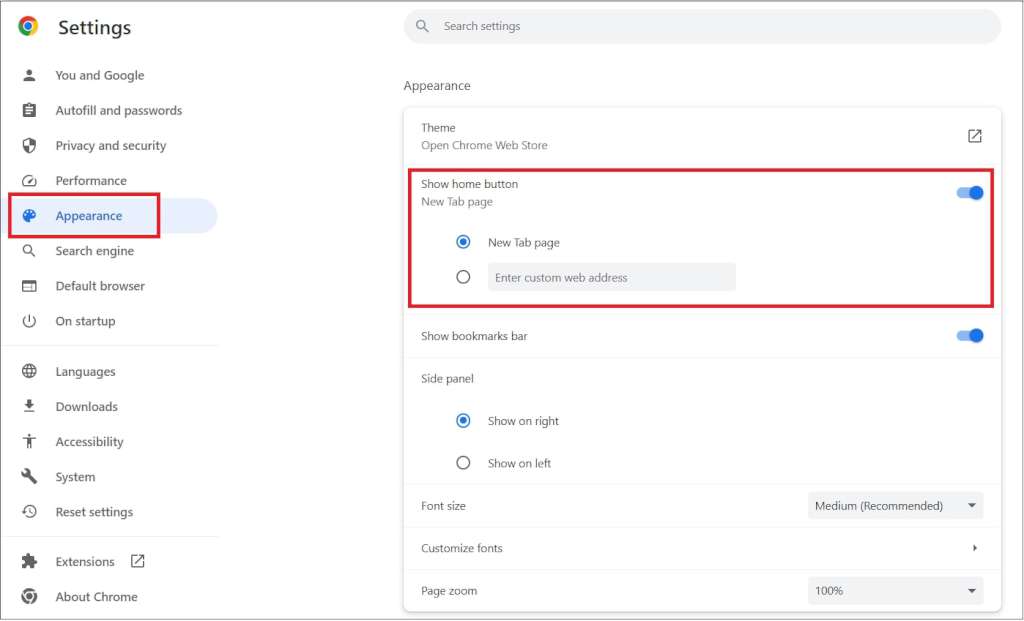
Chrome: Settings Search engine and there, you need to remove the unknown search engine (and perhaps even set Google as default. And in “On startup” make sure it is set to what you actually want)
Firefox: Settings Home and set your page back to what you want. Settings Search Default search engine and select Google or whichever one you would like
Safari: Preferences General and edit homepage; then click the search tab and set that as well.
While in any of your browser settings I would also visit the extensions area and remove anything which you didn’t explicitly remember installing, in the event of the latter just remove anything that is unknown because real extensions will normally show you clearly what they do.
Finally you may need to delete notifications from sites as these hijackers enable push notifications as a fallback system when the program itself is gone. Under settings for any of your browsers you should be able to find them within the Site Permissions area and disable notification permissions.
It really takes about half an hour once you know how, it is really nothing complex but just things that you are never shown.