
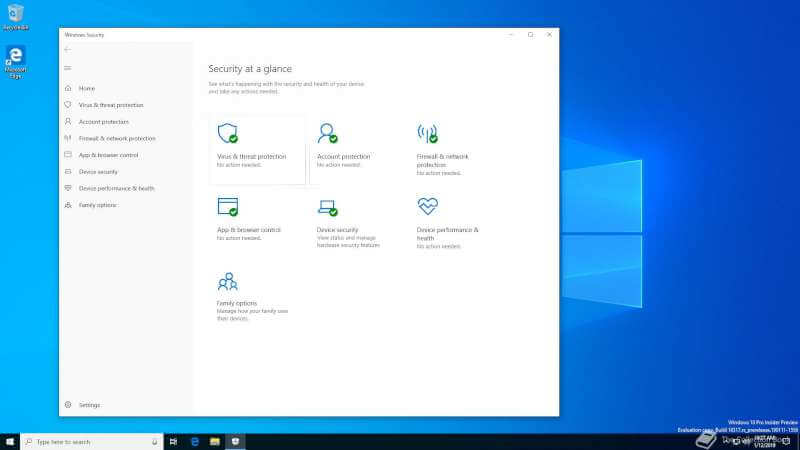

Microsoft Defender is a great security shield that comes pre-installed on Windows operating systems and protects your system with all its might. It is vital for your computer’s health that this program always stays up to date and runs smoothly. If you install another antivirus program on your system, Windows automatically pulls this program into the background and disables it. But if you have left your computer completely unprotected, you definitely need to check if Defender is open. Because it is he who takes on the task of protecting your system against the dangers of the digital world. To do this, you open the Start menu immediately, type “Windows Security” into the search bar and click on the application that appears. When you open the security center, if there is a problem, the system immediately throws a red or yellow warning at you. If everything is fine, it reassures you with green approval symbols.
How to download Microsoft Defender ?
So, what should you do if you somehow disabled this program or want to reinstall it? The process is extremely practical for Windows 10 and 11 users. You immediately open the Microsoft Store application on your computer. If you are still using an old version such as Windows 7 or 8, you need to open your browser and go to Microsoft’s official website because there is no Store application on your system. In the second step, you search for “Microsoft Defender” in the search bar of the Store application or website. Windows 10 and 11 users click on the official application that appears in front of them and start the download immediately by pressing the “Get” or “Install” button. Windows 7 and 8 users use the direct download button on the web page. As soon as the file is downloaded to your computer, you run the installer and complete the installation steps in seconds by pressing the “Next” buttons.
What exactly does Microsoft Defender do
As for what Microsoft Defender does in the background, this smart shield monitors your system for suspicious activity 24/7. By scanning the files you download and the programs you run in real time, it prevents dangers before they even enter the door. You can manually check your system by using the quick, full or custom scan options to catch malware, or you can rely on the program’s automatic scan schedule. Defender plays a full team game with Windows Firewall to prevent external threats and unauthorized access from your network, and it doesn’t leave you alone when you browse the Internet. Thanks to browser extensions, it instantly blocks fake phishing sites and malicious web pages, allowing you to browse the digital world safely. With the “Controlled Folder Access” feature, you can even choose your most critical folders. So when ransomware tries to access these files without permission, Defender sets a direct set. Microsoft keeps your system fit at all times by constantly updating Defender against the new tricks of cybercriminals.
How to download Microsoft Defender and Endpoint versions for business ?
If you have a business and you have one of the enterprise plans like Microsoft 365 E5, you are using the Microsoft Defender for Endpoint version to protect company computers. If you lost the installation file, don’t panic. You log in to the Microsoft Endpoint Security portal with your corporate account. By going to the “Microsoft Defender for Endpoint” section inside the portal, you can easily manage all the components you need. The system brings out 32-bit or 64-bit installation files according to your computer’s architecture, and you choose the appropriate one and complete the download. If you don’t have a license yet, Microsoft offers you the download link as soon as you buy a subscription, and you solve the problem at its root with this step.
To download this commercial version, which secures company computers and Microsoft software, you log in to the Microsoft 365 Security Center with your Microsoft 365 Business Extra or E3/E5 subscription. After clicking on the download link that appears and completing the installation, you define the necessary application permissions. As soon as you give the permissions, the program configures all security settings on the computer by itself and makes the system ready for use immediately.