
360 Total Security is a free antivirus and PC maintenance suite from Qihoo 360 that combines virus scanning with WiFi checks, junk-file cleanup, and startup optimization in a single dashboard. This guide walks through downloading and installing it, understanding your scan options, and getting the most out of its cleanup tools.
Downloading and Installing
Start by downloading the latest installer from the official 360 Total Security website. Once it’s finished downloading, double-click the setup file to launch it. On the first screen, read through the license agreement, check the box to accept it, and click Next. On the next screen, click Install and give it a minute to finish. When setup completes, the program opens automatically and you’re ready to start using it.
Getting to Know the Interface
The dashboard is built around five main areas: Full Check, Virus Scan, Speed Up, Clean Up, and Tools (which bundles extras like Wifi Security Check, Sandbox, and Patch Up). Clicking Check Now in the top-right corner runs Full Check, 360’s one-click scan that covers the basics in a single pass — it looks for viruses, flags unnecessary startup items and junk files, and reviews your WiFi and router settings for anything that needs attention. Once it’s done, everything it found is listed on the results screen so you can decide what to clean up or fix.
Choosing a Scan Type
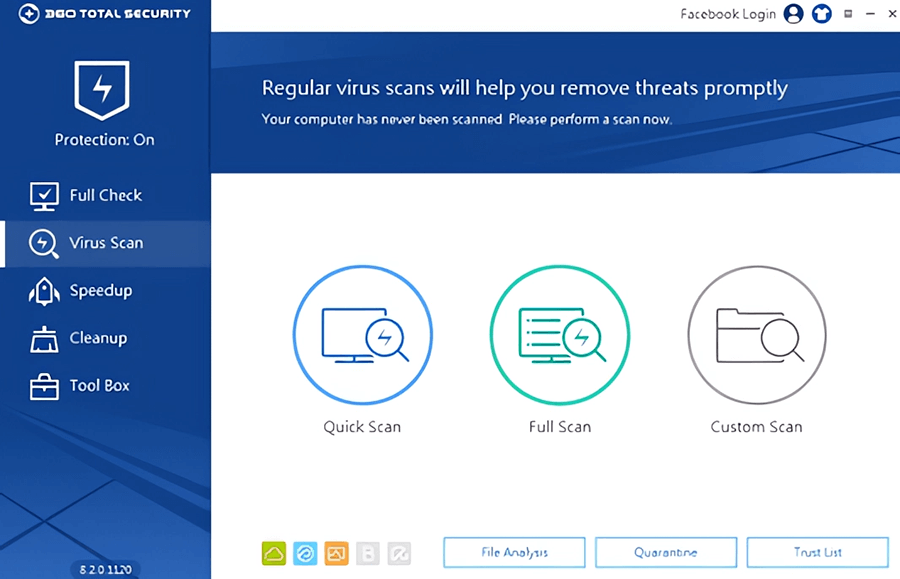
If you want more control than Full Check gives you, 360 also offers three dedicated scan modes. (Click Skip on the intro screen to jump straight to them.)
Quick Scan checks the Windows system files on your C: drive, where most infections tend to turn up. It’s fast, and it’ll catch anything urgent right away.
Full Scan is a thorough pass through your entire system, usually taking one to four hours. Real-time protection and Quick Scan already cover most day-to-day risk, so you don’t need to run this constantly — but scheduling it every week or two is a reasonable habit, more often if you download a lot or share the PC with other people.
Custom Scan lets you pick specific files or folders to check — handy when you just want to scan a single download or drive without waiting on a full sweep.
Other Useful Tools
Beyond scanning, 360 Total Security includes a handful of maintenance tools worth knowing about:
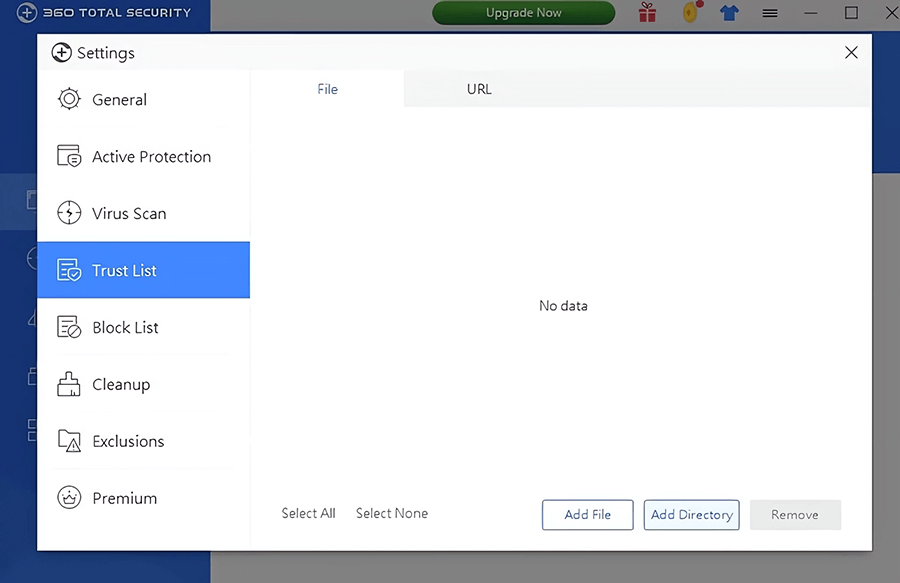
- File Analysis, Quarantine, and Safe List help you manage anything flagged as suspicious. If something gets caught by mistake, adding it to the Safe List keeps it from being flagged again.
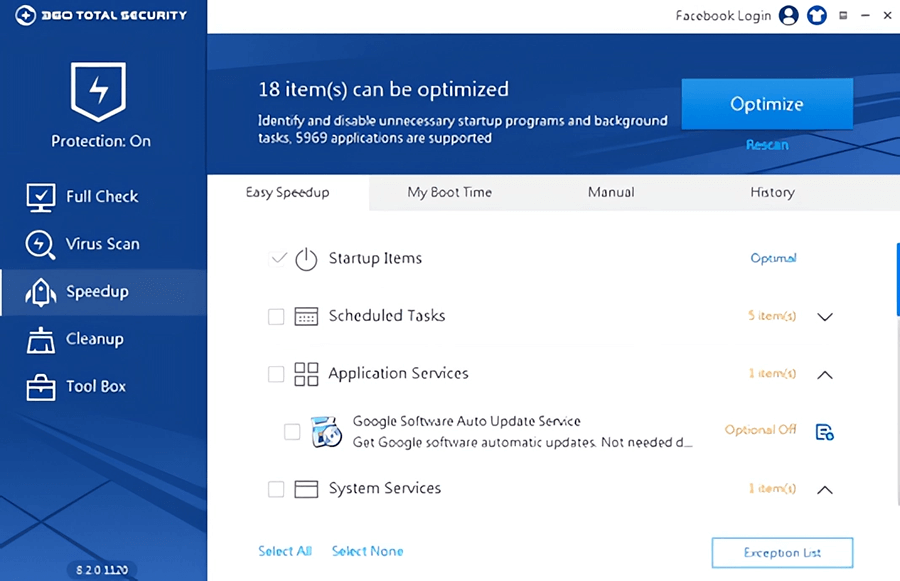
- Speed Up manages your startup programs and background services, so you can turn off the ones you don’t need and shave time off boot-up.
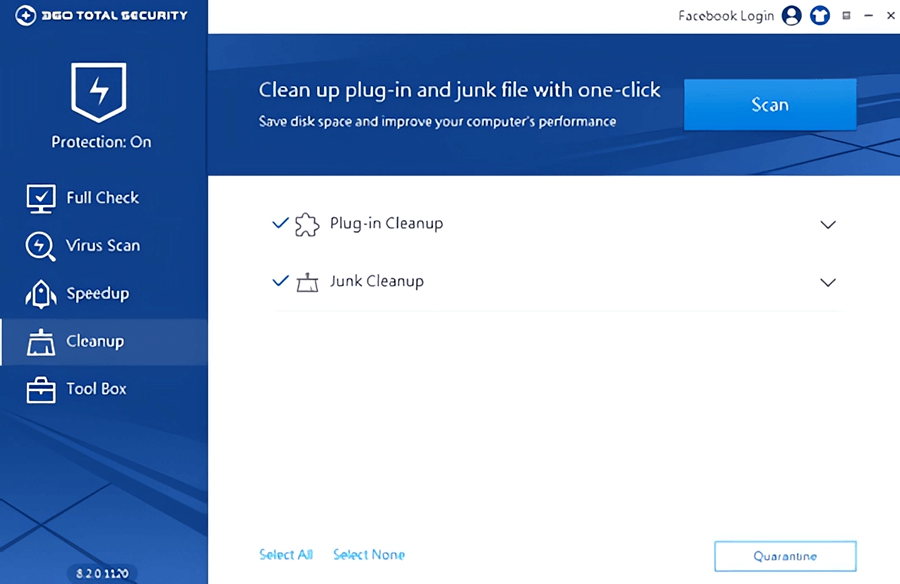
- Clean Up clears cache files, temporary data, and leftover system files in one click — and you can choose in advance exactly which file types it’s allowed to touch, so nothing important gets deleted by mistake.
- Sandbox runs an unfamiliar program in an isolated space so it can’t affect the rest of your system, which is useful for testing something you’re not sure about.
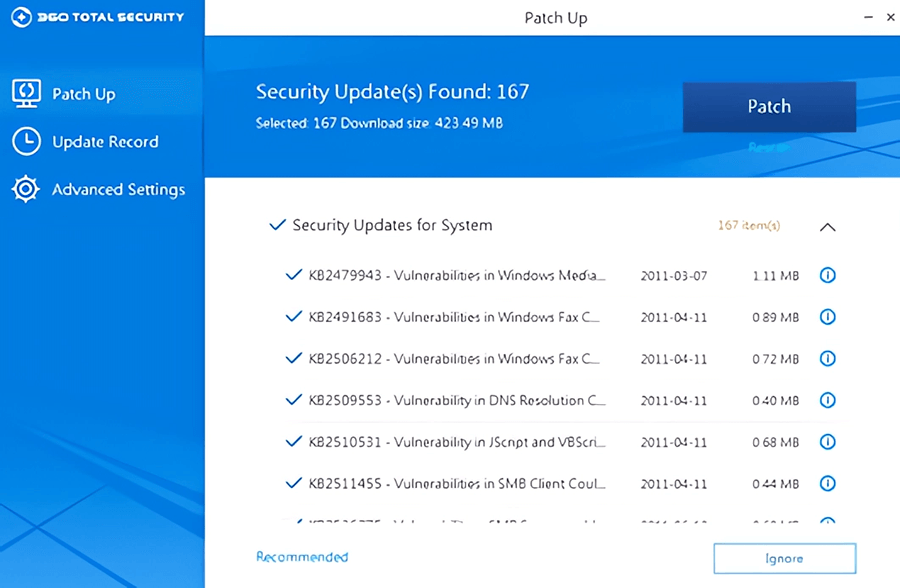
- Patch Up and the System Backup Cleaner round out the maintenance side, handling security patches and clearing out old backup files.
Staying Updated
360 Total Security updates itself automatically, so there’s rarely a reason to touch the Updates tab in the top-right corner — the defaults already keep things current. If you hit a bug or have a suggestion, there’s a feedback button in the bottom-right corner that goes straight to the developers.
Uninstalling 360 Total Security
If it’s not for you, removing it is straightforward: go to Control Panel > Programs > Uninstall a Program, select 360 Total Security, and follow the prompts. It uninstalls cleanly without leaving anything behind.
Should You Upgrade to Pro?
Everything covered here — downloading, installing, scanning, and basic cleanup — works on the free version. If you end up using 360 Total Security regularly and want more, the paid Pro tier adds extras like deeper scan and cleanup customization, boot-time tuning, and priority support. Whether it’s worth it comes down to how much use you’ll actually get out of those extras.
Pictures