
If you want to install Adobe Flash Player on a computer that doesn’t have an internet connection, you should download the free manual 64-bit installation file. That’s because, even if you do have an internet connection, Adobe has discontinued support for the online Flash Player installer. So downloading the offline installation file is really your only option at this point.
As you may know, clicking the download link on Adobe’s website used to trigger an online installation. But since update support has ended, Adobe has also removed the links to the installer file. That’s why you won’t see a download button on the official page. In fact, the offline installer is still available on Adobe’s website — it’s just that most of us can’t find it, since the page doesn’t share a direct download link. By clicking the manual download link we’ve shared on our page, you can easily skip the hassle of hunting for that link yourself.
The one thing you need to pay attention to here is knowing whether your version of Windows is 32-bit or 64-bit. Since a Flash Player build is available for 64-bit Windows users, installing the slower 32-bit version instead would be missing out. If your computer doesn’t support 64-bit, then you don’t really have another option besides installing the 32-bit Flash Player anyway.
Choose the Adobe Flash Player file that’s right for you from the links below and download it for free.
If you’re not sure how the download process works, read the explanation below.
How do you download Adobe Flash Player for web browsers?
In order to play websites containing FLASH files, you need to install a Flash Player plugin in your web browser. However, there isn’t a single installer package that works for every browser. Since browsers like Internet Explorer or Microsoft Edge, Firefox, and Chrome all use different underlying code components, Adobe has developed separate Flash Player plugins for each one. That means you need to install the Flash Player version that matches whichever browser you’re using. If you use more than one browser, you’ll need to install a separate Flash Player plugin for each one. Pick the right plugin for your browser from the section below.
For Opera and Google Chrome…
Adobe Flash Player installs into Opera or Google Chrome as a plugin that runs in the background. That’s why, even though there’s a Flash Player plugin listed under Chrome’s “Settings > Extensions” window, you won’t actually see it displayed. However, if you try to open a website with FLASH video and the video won’t play, that’s a sign your browser doesn’t have a Flash Player plugin installed.
When we want to download Flash Player for Google Chrome, all we need to do is open this browser and then visit Adobe’s official web page through a web archive — since you can’t reach the live page directly through Adobe anymore. Because you’re opening the page in Chrome or Opera, you’ll see the option on screen to install the PPAPI-based plugin that’s compatible with these two browsers. When you click the “Install now” button, a 33.2 MB Flash Player installer file downloads to your computer.
However, this file also bundles two security add-ons called McAfee Security Scan and McAfee Safe Connect. If you don’t want to install these two extras, you’ll need to uncheck the boxes under the “Optional offers” heading in the download window. That way, you can download just the plugin at around 20 MB, without the extra software. The same situation applies to the Opera browser as well.
How do you download Adobe Flash Player for Mozilla Firefox?
Computer users who use Mozilla Firefox need to download a separate Adobe Flash Player plugin in order to view websites containing Flash content in this browser. Since this plugin is built with the NPAPI component, you cannot install it on Chrome. Since Adobe provides a separate installable plugin version for every browser, there isn’t a single installer package that works across all of them. To install Flash Player on Firefox, you can quickly download it right here — no need to go hunting for a download link on Adobe’s website. Of course, if your operating system and browser support 64-bit, it’s worth downloading the 64-bit version of Flash Player built for Firefox, since software with a 64-bit core is much more secure than the older 32-bit builds.
Once you install Flash Player, you’ll be able to keep using it for years without needing an update.
After that, once you double-click the installer file you downloaded, the installation completes automatically. A window will then open to test Flash Player, letting you confirm the plugin is working. If you decide you no longer want to use it and would like to remove Flash Player from your computer, you can open the Control Panel and uninstall just the Firefox-related installation. Removing the Firefox installation of Flash Player won’t affect any of your other browsers.
How do you download and update Adobe Flash Player for Windows 10?
No matter which version of Windows 10 you’re running, you don’t need to update Flash Player for Microsoft Edge, since it’s the default browser. The same goes for Opera, Google Chrome, and Mozilla Firefox. However, all three of these browsers may disable Flash Player by default.
How do you configure Adobe Flash Player settings?
On a computer running Windows 10, the most common issue people run into with the default browser, Microsoft Edge, is that Adobe Flash Player won’t open because of ActiveX permission settings. The only fix here is to open Edge’s Settings window and enable ActiveX usage. To do this, click on “Internet Options” and then check the “Security” tab.
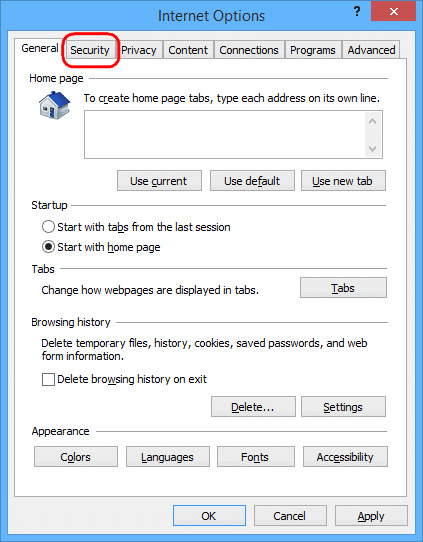
In this section, do the following in order:
- Click the “Custom level” button, and in the options window that opens, enable “Run ActiveX controls and plug-ins.”
- For “Automatic prompting for ActiveX controls,” select “Disable.”
- Enable “Allow ActiveX Filtering.”
- Enable “Script ActiveX controls marked safe for scripting.”
- For “Download signed ActiveX controls,” select “Prompt.”
- For “Download unsigned ActiveX controls,” select “Disable.”
Once you’ve set these options correctly, you won’t run into any more ActiveX-related issues with Adobe Flash Player.
What is the latest version of Adobe Flash Player?
Adobe released the final version of Flash Player, the “32.0.0.465” package, in 2020. Adobe rolled out the last security update in December, then officially discontinued support.
Why isn’t Adobe Flash Player working, and how do I fix this issue?
If Adobe Flash Player is installed on your computer but isn’t working, you’ll need to run a quick check to figure out why, since there are a few simple, common causes.
Did you install the plugin for the browser you’re using?
As you know, Flash Player is installed into web browsers as a plugin. First, make sure you’ve actually installed a Flash Player plugin in the browser you think isn’t working. For example, a Flash Player plugin you install for Firefox won’t work in Chrome. So test it out in whichever browser it’s actually installed on.
Why is Adobe Flash Player being blocked?
The most common reason Adobe Flash Player gets blocked is that you clicked “No” on a pop-up message yourself at some point. Many of us have seen a website pop up asking to track us and clicked “No” to reject it. Since Flash Player’s own pop-up — the one asking for your permission to play a video — looks similar, we sometimes end up rejecting it too without meaning to, just by clicking “No” without reading it carefully. Doing this removes your permission to view Flash content on that site.
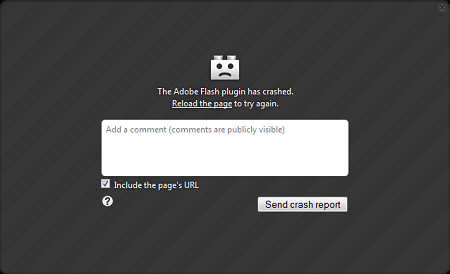
What’s the fix for this error?
If you didn’t realize you were the one blocking Adobe Flash Player, paying closer attention going forward should help you avoid the issue. To fix it, clearing your browser’s cookies should do the trick — and if that doesn’t work, resetting all of your browser settings will. This will fully remove the block.
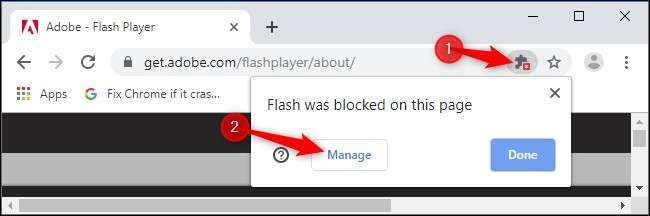
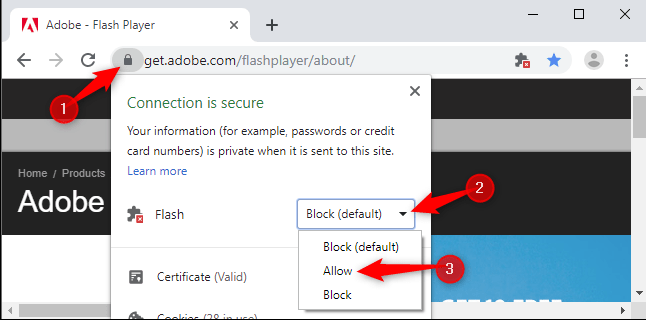
Why won’t Adobe Flash Player install?
If you’re running into an issue installing Adobe Flash Player on your computer and can’t complete the install, the first thing to try is downloading a fresh installer file and trying again.
If the installation issue still isn’t resolved, try removing any existing Flash Player files from your computer and reinstalling from scratch.
How do you remove Adobe Flash Player from your computer?
To do this, open the Control Panel. Click on “Add or Remove Programs.” If you see a Flash Player icon there, try uninstalling it. If you don’t see that icon, download the “Adobe Flash Player Uninstaller” file to make sure you’ve completely removed it from your computer. Running this file will automatically remove any leftover Flash Player files.
Once that’s done, you’ll find that trying a fresh Flash Player installation resolves the earlier issue.