
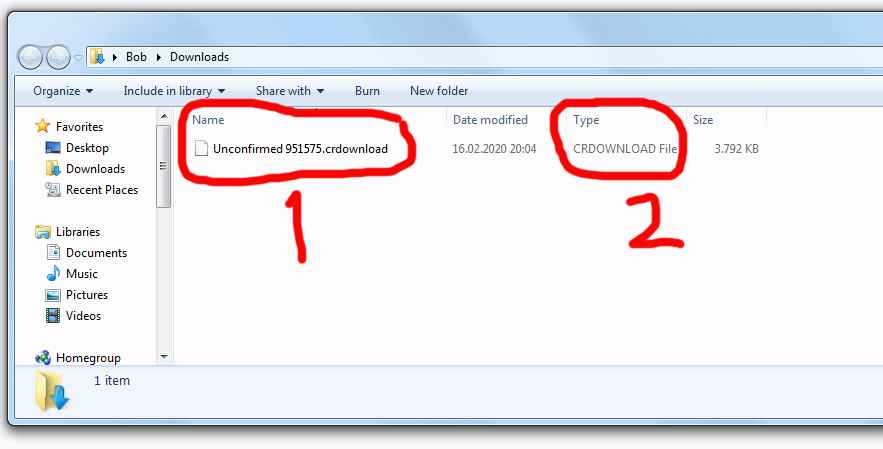
So you have got a .crdownload file sitting there and you are wondering what it actually is. It is a pretty common mystery especially if you are new to Chrome the thing is, Chrome uses the .crdownload extension for temporary incomplete download files. It is basically a way of saying, “I am not done yet” Chromium-based browsers like Edge, Brave and Opera do the same thing. When you start a download your browser drops an item in your destination folder with a filename that looks something like this ActualFileName.extension.crdownload. That’s your temporary file right there now, if you are on Chrome v89 or later the filename is not fixed. Chrome generates it on the fly based on the download link and whatever the server sends back basically a random identifier. So instead of seeing the real filename you get something like Unconfirmed 12345.crdownload. Looks nothing like the original right? That’s by design it is a security thing, plus it keeps filenames from colliding with each other.
Inside the file it is just a raw binary stream the downloaded data written as-is byte by byte. Once the download actually finishes, Chrome writes those last few kilobytes then does an atomic rename at the OS level. It strips the .crdownload extension right off so what happens if your download gets stuck or Chrome crashes? Before you go poking around remember the golden rule if Chrome is still actively writing to the file, meaning the download is still in progress don’t touch it. Let it finish on its own. There’s a good chance the download will complete and turn into the real file without any help but if your network and disk activity have completely flatlined and the download is clearly not moving anymore then yeah, you can step in. Just don’t assume that means you will get a working file out of it you have two ways to deal with it. Start with the easy one.
Way 1: Resume it inside Chrome’s download manager (the safest bet)
This is the low-risk way to go because you are not messing around in the file system open up Chrome and head to chrome://downloads/. Find the failed or paused download, it is probably sitting right at the top. If you see a Resume button click it. Chrome will try to pick up where it left off. This only works if the server supports the Accept-Ranges bytes header. If it doesn’t, no big deal. Chrome will start the download over from scratch. It will delete the old .crdownload file, create a brand new one and when it is done, you’ve got your file. Either way, the issue is resolved.
No Resume button? That means Chrome lost track of the file. In that case head back to the webpage you originally downloaded it from and start a fresh download. That takes care of it as well.
Way 2: Rename the extension and bypass the download session (the riskier option).
This one’s simple but don’t say I didn’t warn you there’s no guarantee it will work. Chrome might delete the file the server might refuse resume requests or the download may simply fail. A lot depends on where the file came from keep that in mind.
If you want to try it manually follow these steps:
Before you rename anything make a backup copy that .crdownload file somewhere else so you have a safety net.
Then close Chrome completely. Head to Task Manager > Details tab and make sure there are no chrome.exe processes hanging around. Don’t skip that.
Now, change the extension but only if you are sure what you were downloading. If you know it was supposed to be a video.mp4 or a document.pdf remove the .crdownload extension from your backup copy and replace it with the correct one. Like … MyFile.mp4.crdownload becomes MyFile.mp4. The filename itself doesn’t matter call it whatever you want the extension is what counts if you were downloading an MP3 you’d use .mp3. You get the idea if the file is named something like Unconfirmed 1234567.crdownload, ditch that random number and plug in the extension you know it should have.
But what if you have no clue what the file type is? That’s where a hex editor comes in.
Using a hex editor to figure out the extension (a bit more advanced).
Grab a hex editor like HxD or Hex Fiend Open the .crdownload file in it. What you are looking for is the file signature, those first few bytes at the very beginning of the file.
Here are the most common ones you will run into:
- PK (0x50 0x4B) for ZIP, DOCX, XLSX, APK, JAR, etc.
- %PDF (0x25 0x50 0x44 0x46) for PDF
- RIFF (0x52 0x49 0x46 0x46) for AVI or WAV
- ‰PNG (0x89 0x50 0x4E 0x47) for PNG images
- ÿØÿà (0xFF 0xD8 0xFF 0xE0) for JPEG images
- ftyp (usually at byte 4: 66 74 79 70) for MP4 video
- ID3 (0x49 0x44 0x33) for MP3 audio
Once you spot the signature you will know what extension to use rename the file accordingly and if the download is usable, it should open with the correct extension.
Now, let’s talk about some common headaches and how to deal with them.
The “you can’t rename this file” error
Chrome put a write lock on it. You can use tools like Handle or lsof to figure out which process is clinging onto the file and kill it but honestly, most people are not going to do that the easiest fix? Restart your computer. If that still doesn’t work, boot into Safe Mode. That will usually break Chrome’s lock. If your antivirus is getting in the way Safe Mode handles that too. This is the cleanest way around it.
When the file is incomplete but somehow opens or runs
Archives (zip/rar/7z) : If the Central Directory record at the end of the archive is missing you are out of luck even if all the file data is technically there. Use Winrar or 7-Zip’s built-in repair tool. It scans the bytes you do have and tries to rebuild that directory. If the damage is not too bad the archive will open. But if a lot of data is missing it might open while still refusing to extract anything. At that point an incomplete file might as well be no file at all a fresh download is usually the only practical solution.
Media files (mp4, avi) : Codec info and the moov atom (indexing data) usually live at the start or end of the file. If the moov atom at the end is missing, the video won’t play. You can try moving it to the front with ffmpeg (-movflags faststart) but that only works if the file is already complete. An incomplete file with a missing moov atom is pretty much unrecoverable. You might be able to pull out a raw h.264 stream with some specialized tools but it is a tedious process, takes forever and often doesn’t work. That’s your absolute last resort.
Antivirus and firewall interference
Sometimes your antivirus scans a .crdownload file in real time and slaps a lock on it. Google Chrome tries to rename it gets hit with an ERROR_ACCESS_DENIED and gives up. The download shows 100% done but the file is still sitting there with the .crdownload extension. If this happens temporarily disable real-time protection and rename the file manually. The file’s already fully downloaded you only need to fix the name.